How Can We Help?
Google Dialogflow
How to set up your Dialogflow agent?
Connect to Google
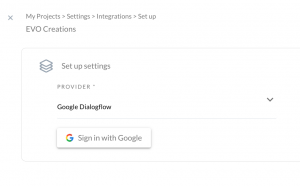
Under set up settings in project integration settings, select Google Dialogflow. Once selected you will get button to Sign In with Google. This will walk you through sign up provided by Google.
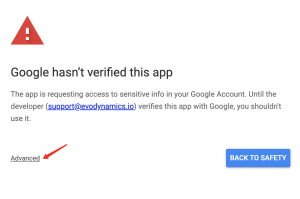
SAFETY ALERT!
If you get a safety alert, don’t panic! Our verification process* is still ongoing that is why Google might show this alert. Simply hit the Advance options link and click the link Go to EVO Dynamics.
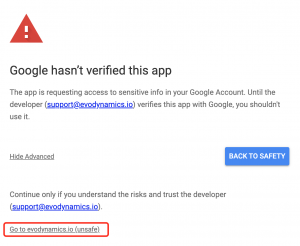
* If you have any concerns about your data please go ahead and read our privacy policy page. We are fully GDPR compliant and will keep your data safe.
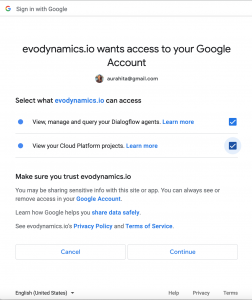
Google will ask you to accept the permissions. Make sure you select both options and hit Continue. You should be redirected back to the console.
Almost there! You can see now a dropdown containing all your Dialogflow agents. Select the one you want to integrate for this project and hit Connect.

Congratulations! Your agent has been connected. 🎉
Project set up
Next, let’s get down to the details. You can choose your languages as well as your Welcome and Default Fallback and Human handover intents. This will be crucial to get the most our of your reports.
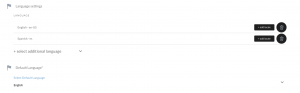
Languages
If you have a multilanguage agent, choose all the languages you want and select the default language for your agent. EVO Dynamics will only catch the data from the chats on the languages selected.
You can add or delete languages at any time as well as add locale languages. Same as in your Dialogflow agent.
Project Preferences
Time to select your Welcome Intent, Default Fallback and Human Handover intents. If you are not using any of them just leave it blank.
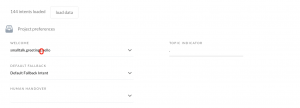 A topic separator can be a dot, a comma, a dash, etc. We use the topic separator to indicate the topic to which an intent belongs. For example, if your intent is something like smalltalk.greetings.hello the topic separator is . and the Topic will be Small Talk.
And we are done!
Don’t forget to hit the SAVE button on the top right corner before you exit the settings page.
If you have any trouble gettings started please contact us at support@evodynamics.io
Happy analyzing!