How Can We Help?
Set up your project
How to set up your first project?
The first time you login into EVO Dynamics you will see a pretty much empty dashboard only highlighting your account name followed by an indication of the number of projects you signed up for.
So let’s add your first project.
Click on the + button on the box below your account name and the project setup page will slide right in.

1. Project Information
Fill up the Project Information fields and hit the CREATE button.
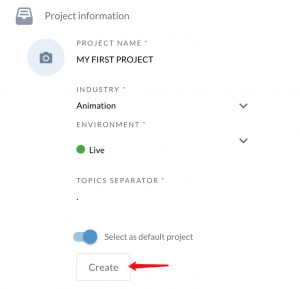
A topic separator can be a dot, a comma, a dash, etc. We use the topic separator to indicate the topic to which an intent belongs. For example, if your intent is something like smalltalk.greetings.hello the topic separator is . and the Topic will be Small Talk.
2. Integrations
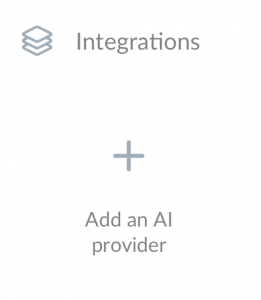
Integrate with your NLP provider[]. If your NLP provider is not listed please contact us[] and will help you set it up.
3. Channels
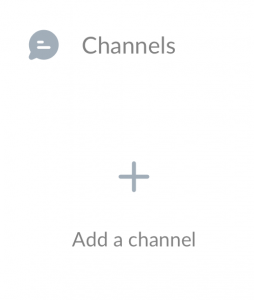
Add your channels[], any channel where you’ve activated this chat automation.
4. User Management
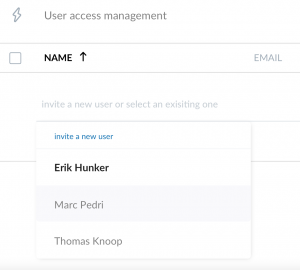
Invite your team. You can invite the users you’ve previously added to your account. If you need to add a new user [] you will need to add them first to your account.
Don’t forget to hit the SAVE button on the top right corner before you exit the settings page.
If you have any trouble please contact us at support@evodynamics.io
Happy analyzing!